
Options
Notifications
Connect your badge or get one to follow the activity of your listings: messages, bookmarks, likes, views and reviews
Get a badgeOptions
Interface
Interface language, theme colors and Light or Dark, device by device; header layout on a computer.
Interface language
Language of the menus, buttons and texts of the platform: 104 languages to choose from.
Reading direction
Theme colours
Colour of the header, the catalog bar, the buttons and the links: 8 single-colour themes and 25 duos (one colour for the header, another for the buttons).
All devices
Single-colour themes
Duos
Selected theme: {thème}
Light or Dark
Light: light background and dark text, ideal in bright daylight. Dark: dark background and light text, easier on the eyes in the evening or in a dimly lit room.
All devices
Header and page elements
Elements you can hide. An element hidden in the past with no way to show it again can be set here again.
All devices
Header layout
Layout of the shortcuts to the left of the logo, on a computer, when the window is 1200 px wide or more. Tablets and smartphones each have their own fixed header, which cannot be adjusted.
Computer
Marquee
Information ticker displayed below the header, to the left of the logo: seven styles to choose from, on desktop.
Ticker style
The ticker sits in the strip between the header and the catalog bar, to the left of the logo, when the window is 1200 px wide or more. A platform message takes its place while it is displayed.
Computer
In CPU mode, the ticker moves page by page instead of scrolling continuously.
Performance
Lightens the display for modest computers.
CPU mode or GPU mode
CPU mode removes blur, shadows and animations so that modest computers stay smooth. GPU mode shows every visual effect, for computers with a good graphics card. The content of your walls does not change.
All devices
Preloader
Progress bar shown between two pages.
Progress bar on click
Thin bar shown at the top of the screen as soon as you click a link, until the next page opens.
All devices
All devices
All devices
Header fill while loading
While loading, the progress also colors the header background, beneath the buttons and text, which stay readable. The header banner is never covered.
Computer
Computer
The logo area only fills when the header background fills too.
Postloader
Message shown while a page finishes loading.
End-of-loading message
Short message shown while the page finishes loading.
All devices
Listings wall
Bar shown between the header and the thumbnails of your walls.
Wall view
How the listings of your walls are presented, on each device. The fine settings of each view are in the following tabs.
Computer
Tablet
Smartphone
Catalog bar
Bar shown between the header and the thumbnails of your walls.
All devices
Computer
Thumbnail view
Settings for the wall shown as thumbnails, device by device: size, margins, frame, hover, content, back side, video thumbnails and banners.
Thumbnail size and number per row
In automatic grid, the number of thumbnails per row adapts to the screen width. With a fixed number, it never changes.
All devices
Automatic grid
Large format, fixed number per row
Small format, fixed number per row
Margins and spacing
Moves the listings closer to or further from the screen edges and from each other. Negative values make the block overflow slightly.
All devices
Block margin left and right
−20 px500 px
Horizontal spacing
0 px30 px
Vertical spacing
0 px40 px
Margin above the wall
0 px60 px
Thumbnail frame
Outer border of each listing. Chamfer is the default frame. “Soft rounded” and “Accent capsule” have rounded corners.
All devices
Hover effect
What the listing does when the mouse passes over it. In CPU mode, only the essentials remain. Computer only: touch screens have no hover.
Computer
Content of the + button
Information revealed when you click the + on a thumbnail, page by page.
All devices
Home
Public catalog
Restricted catalog
Private catalog
Date format
Pins always visible
All devices
Back of the thumbnails
The flip button or a right-click shows the back. “Flip all” and “Turn all back over” are in My wall.
All devices
Video thumbnails
A category of its own: the with or without photo choice does not apply to video thumbnails.
All devices
Pages with video thumbnails
Autoplay
Banners
The banners shown between the listings of this view. The homepage follows the wall composition; the listing page and the header sponsor slot are set in the Banners tab.
All devices
Images and videos
Formats
Publisher catalogs
Maximum per page
List view
Settings for the wall shown as a list, device by device: photo, columns, margins, content, video thumbnails and banners.
Columns and row size
One listing per row, on one or more columns: the photo on the left, the details in the centre, the price and the publisher on the right.
All devices
Columns
Photo width
Photo format
Row height
Margins and spacing
Moves the listings closer to or further from the screen edges and from each other. Negative values make the block overflow slightly.
All devices
Block margin left and right
−20 px500 px
Horizontal spacing
0 px30 px
Vertical spacing
0 px40 px
Inner margin of listings
0 px24 px
Margin above the wall
0 px60 px
Listing frame
Outer border of each listing. Chamfer is the default frame. “Soft rounded” and “Accent capsule” have rounded corners.
All devices
Hover effect
What the listing does when the mouse passes over it. In CPU mode, only the essentials remain. Computer only: touch screens have no hover.
Computer
Displayed information
This view has no + button: the information is shown directly.
All devices
Description
Right column
Back of listings
Not applicable in this view: it has no back, all the listing information is already visible.
Video thumbnails
A category of its own: the with or without photo choice does not apply to video thumbnails.
All devices
Pages with video thumbnails
Autoplay
Banners
The banners shown between the listings of this view. The homepage follows the wall composition; the listing page and the header sponsor slot are set in the Banners tab.
All devices
Images and videos
Formats
Publisher catalogs
Maximum per page
The placement of banners in the List view (columns, between the listings) is set in the Banners tab.
Map view
Settings for the wall shown next to the world map (computer only): layout, map, pins and banners.
Layout of the map and the list
The list of listings next to the world map. Available on computer only.
Computer
Map position
List width
Map height
Photo size in the list
Margins and spacing
Moves the listings closer to or further from the screen edges and from each other. Negative values make the block overflow slightly.
Computer
Block margin left and right
−20 px500 px
Vertical spacing
0 px40 px
Inner margin of listings
0 px24 px
Margin above the wall
0 px60 px
Space between the list and the map
0 px40 px
Listing frame
Outer border of each listing. Chamfer is the default frame. “Soft rounded” and “Accent capsule” have rounded corners.
Computer
Hover effect
What the listing does when the mouse passes over it. In CPU mode, only the essentials remain. Computer only: touch screens have no hover.
Computer
Back of listings
Not applicable in this view: it has no back, all the listing information is already visible.
Video thumbnails
A category of its own: the with or without photo choice does not apply to video thumbnails.
Computer
Pages with video thumbnails
Autoplay
Banners
The banners shown between the listings of this view. The homepage follows the wall composition; the listing page and the header sponsor slot are set in the Banners tab.
Computer
Images and videos
Formats
Publisher catalogs
Maximum per page
World map
How the map and its pins behave.
Computer
Grouping distance
20 px100 px
Zoom when opening
Text on the pin
Country colours
Number of colour levels
Gallery view
Settings for the wall shown as a photo gallery, device by device: tiles, margins, text on the photo, back side, video thumbnails and banners.
Tile size and number per row
Photos shown large, as a mosaic.
All devices
Grid
Size in automatic grid
Tile format
Large tile rhythm
Margins and spacing
Moves the listings closer to or further from the screen edges and from each other. Negative values make the block overflow slightly.
All devices
Block margin left and right
−20 px500 px
Horizontal spacing
0 px30 px
Vertical spacing
0 px40 px
Inner margin of listings
0 px24 px
Margin above the wall
0 px60 px
Listing frame
Outer border of each listing. Chamfer is the default frame. “Soft rounded” and “Accent capsule” have rounded corners.
All devices
Hover effect
What the listing does when the mouse passes over it. In CPU mode, only the essentials remain. Computer only: touch screens have no hover.
Computer
Text on the photo
What is written on the photo, on the front of the tile. The back shows all the information.
All devices
Back of tiles
The flip button or a right-click shows the back. “Flip all” and “Turn all back over” are in My wall.
All devices
Video thumbnails
A category of its own: the with or without photo choice does not apply to video thumbnails.
All devices
Pages with video thumbnails
Autoplay
Banners
The banners shown between the listings of this view. The homepage follows the wall composition; the listing page and the header sponsor slot are set in the Banners tab.
All devices
Images and videos
Formats
Publisher catalogs
Maximum per page
Frequency
Filters
Listings with or without a photo, origin, rating and filter bar of your walls.
Wall composition
Listings with photo and listings without photo: tick the ones you want to see on your walls.
No building block ticked: your listings walls will be empty.
No listings ticked: your walls will only show video thumbnails and banners.
Listing origin
Ghost: listings published anonymously, whatever the badge. Free, Pro and Sponsor: the publisher's badge. Filter applied to all catalogs; at least one box stays ticked.
Listing rating
Score ranges shown on all catalogs. Default: 3 and above. At least one range stays ticked.
Pages with the filter bar
All devices
Filters shown in the bar
All devices
Number of listings per filter
All devices
Sort
Order of the listings on your walls and in publishers' catalogs: up to three criteria.
1st sort criterion
Order of the listings on your walls and in publishers' catalogs.
Choosing a criterion already used at another level swaps the two levels.
2nd sort criterion
Breaks ties between listings that are equal on the 1st criterion.
3rd sort criterion
Breaks ties between listings still equal on the first two criteria.
Sorting by price compares amounts without currency conversion.
Banners
Image and video banners between the thumbnails: formats, autoplay, pages and maximum per page.
Each wall view has its own banner settings, device by device (Grid view, List view, Map view and Gallery view tabs). The settings below are the shared value for views that have none of their own, and they set the listing page and the header sponsor slot.
Placement in the List view
Where banners go when the wall is shown as a list, on computers. The right column appears once the wall is 1000 px wide, the left one from 1300 px.
Computer
Width of the right column
Images and videos
Formats
Pages
The homepage follows the wall composition.
Pagination
Number of listings per page and buttons to change page.
Le nombre d'annonces par page, la position et la taille des boutons se règlent vue par vue et appareil par appareil. Les mêmes réglages figurent dans l'onglet de chaque vue et dans Mon mur.
Thumbnail view
All devices
Number of listings per page
Button position
Button size
List view
All devices
Number of listings per page
Button position
Button size
Map view
Computer
Number of listings per page
Button position
Button size
Gallery view
All devices
Number of listings per page
Button position
Button size
Columns visible in the megamenu
Continents, countries, regions, departments, postal codes and cities: number of columns shown side by side; the next ones scroll.
All devices
Pagination button colour
Shared by all views. The six palettes predate the 33 themes: they keep their colours in Light and in Dark.
All devices
HyperProfil menu
Left-hand menu that groups your HyperProfil and your custom walls.
Menu at end of life: it remains available for now and will be removed in a future version. All its functions are already in the HyperProfil megamenu.
Show the HyperProfil menu
Computer
The settings for submenus, the collapsed menu and the activity buttons appear when the menu is shown.
How submenus open
Computer
Submenus from one page to the next
Computer
Collapsed menu hover
Computer
Current settingA setting that shows right away is saved as soon as you change it. The others wait for the Apply changes button.
Reloading the page…

@KrakImmo11
Votre partenaire de confiance dans l'immobilier (FR). (Compte de démonstration officiel de @Commercify)... · Compte complémentaire 11 de @KrakImmo.
Votre partenaire de confiance dans l'immobilier (FR). (Compte de démonstration officiel de @Commercify)... · Compte complémentaire 11 de @KrakImmo.
Account created on 2026/10/10 Official showcase account
Customer Certification
How to obtain the customer certification on Commercify?
Transaction fees are currently capped at 0% for all users. Afterwards, fees will remain at 0% for contributors of €199, will symbolically rise to 1% for buyers who have completed 10 consecutive successful transactions with no incidents, and will be 3% for other non-certified buyers.
If the customer certification is lost following a minor incident, a contribution of €199 will be required to recover it immediately, or a positive track record of 10 consecutive transactions, rated positively by sellers, must be demonstrated again. In case of a serious dispute, all badges attached to the user will be removed.
The customer certification is a tool to reassure sellers by giving a confidence rating on the sincerity of Commercify buyers.
Merchant Certification
How to obtain the merchant certification on Commercify?
Transaction fees are currently capped at 0% for all users. Afterwards, fees will remain at 0% for contributors of €399, will symbolically rise to 1% for sellers who have completed 10 consecutive successful transactions with no incidents, and will be 3% for other non-certified sellers..
If the merchant certification is lost following a minor incident, a contribution of €399 will be required to recover it immediately, or a positive track record of 10 consecutive transactions, rated positively by buyers, must be demonstrated again. In case of a serious dispute, all badges attached to the user will be removed..
The merchant certification is a tool to reassure buyers by giving a confidence rating on the sincerity of Commercify sellers.
Symbolic sponsorship
Find out how to symbolically sponsor Commercify and participate in its development all around you.
Sponsor-badge-1 offered to all Commercify symbolic sponsors.
Validation humaine de votre profil francophone ou international par un modérateur de Commercify (disponible uniquement en région parisienne, étendue rapidement à la France métropolitaine, sous certaines conditions).
Minimum annual promotion on your social networks, on the internet, on the community YouTube channel or in the Commercify guest book.
Frais de transaction plafonnés à 1% symbolique sur Commercify, ou 0% après une contribution unique de sponsoring de 299€ avec validation accélérée de votre profil.
Rejoignez-nous ! Commercify est une toute nouvelle plateforme de vente et d'achat en ligne entre particuliers, qui a besoin de tout votre soutien pour la visibilité de vos annonces.
Listing details
DfwhyKr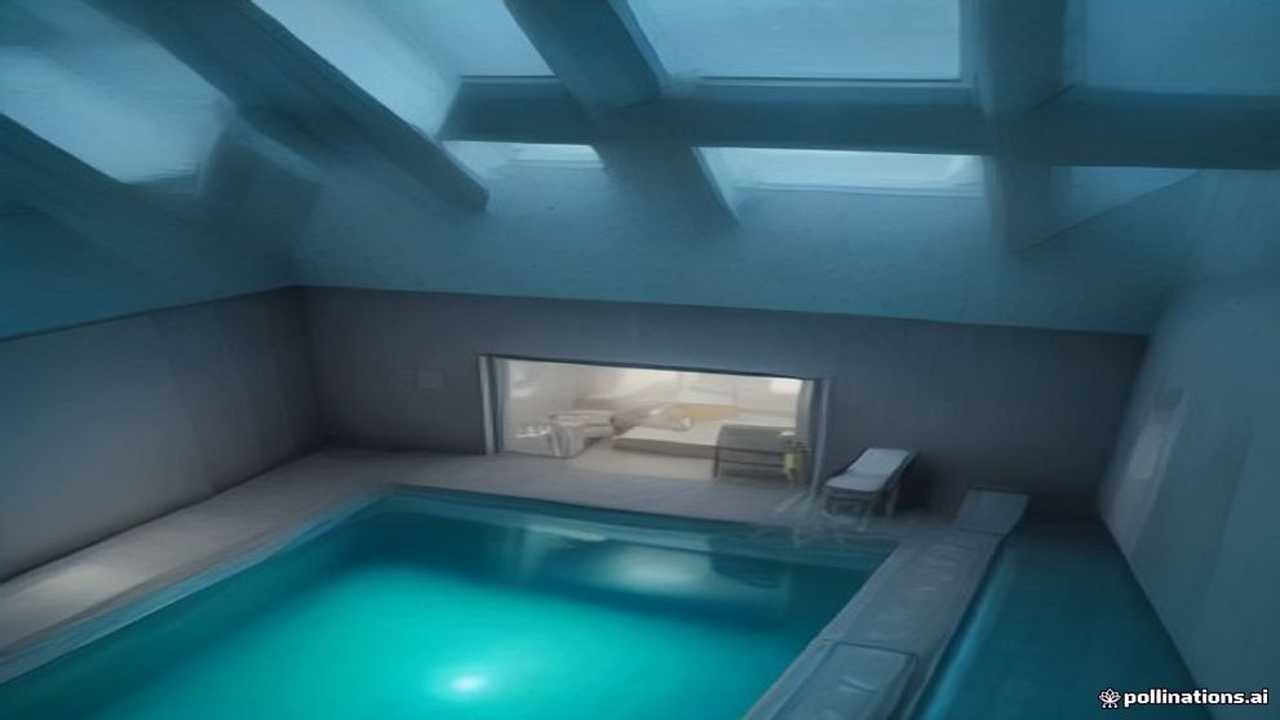
Description
Hus 232m² i Gävle. Rumsliga rum, trädgård, familjevänligt.
Specifications
Yta:
120m²
Rum:
6
Sovrum:
3
Tomt:
400m²
Garage:
2
Tags
- Lägenhet
- Bostad
- Orsa
Locality

Delivery
- On-site
Comments
Add to favorites
This action is reserved for users with a badge.
Get your free badge from the #DreamprojectAI support area.
React to this listing
This action is reserved for users with a badge.
Get your free badge from the #DreamprojectAI support area.
Contact the publisher
This action is reserved for users with a badge.
Get your free badge from the #DreamprojectAI support area.
Report a fraudulent listing
Use these tools to help us fight fraudulent listings.
Available tools
- 1Add a dislike to lower the score by -1.
- 2Leave a negative comment to alert the community.
- 3Place the listing in your blacklist of bookmarks to monitor it.
Use with discretion
Make sure it's a fraud before using these tools. Our system automatically removes listings with a score below 1.
Act with the full force of my badge
Soon, all the publishers on your badge will be able to bring down a fraudulent listing in one go, with a single PIN code.
Score listings (3)
Detailed overview of the different criteria used to calculate the listing score
- Initial moderation score : 3 stars
- Number of likes : 0
- Number of dislikes : 0
- Number of positive comments : 0
- Number of negative comments : 0
- Number of neutral comments : 0 (not taken into account when calculating listing score)
- Calculation details : 3 + 0 - 0 + 0 - 0 = 3
Score listings3
DISPLAY OF 1 AT 12 ON 4,881 LISTINGS








Report a fraudulent listing
Use these tools to help us fight fraudulent listings.
Available tools
- 1Add a dislike to lower the score by -1.
- 2Leave a negative comment to alert the community.
- 3Place the listing in your blacklist of bookmarks to monitor it.
Use with discretion
Make sure it's a fraud before using these tools. Our system automatically removes listings with a score below 1.
Act with the full force of my badge
Soon, all the publishers on your badge will be able to bring down a fraudulent listing in one go, with a single PIN code.
